
The GoDAM Video SEO feature lets you add structured data (JSON-LD) for any video added via the GoDAM block, using Schema.org’s VideoObject format. This increases your video’s chances of appearing in Google rich results and video carousels, and improves visibility across search engines. Editors can set and customize SEO metadata directly in the WordPress block editor via a clean, user-friendly modal.
STEPS:
Step 1: Insert a GoDAM Video Block
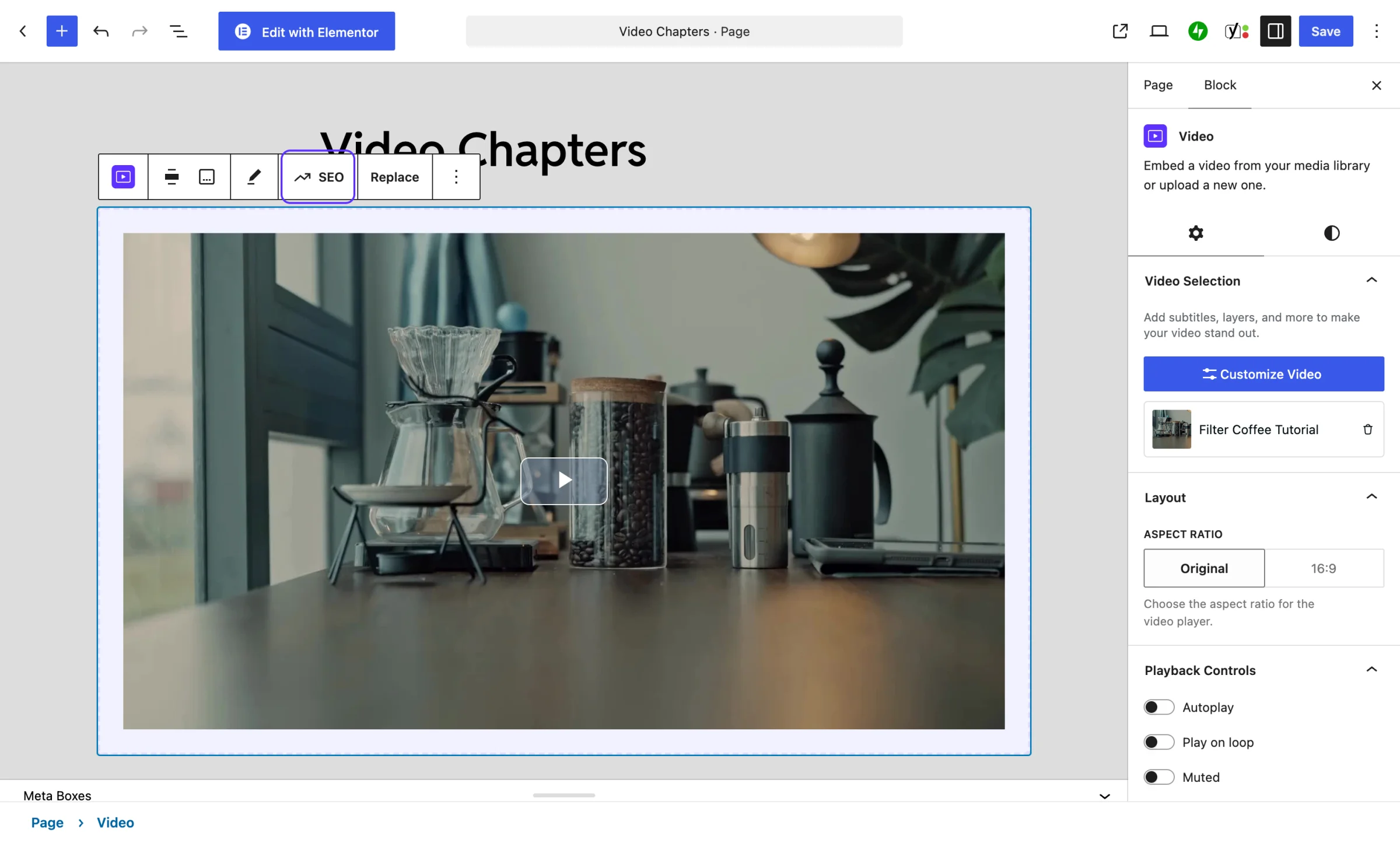
Search for “Video” (or “GoDAM”) from the block editor and add the Video block with the GoDAM icon to your post or page.
Step 2: Open SEO Settings
Click the SEO button in the block toolbar of the selected block.
Step 3: Fill Out Metadata in the Modal
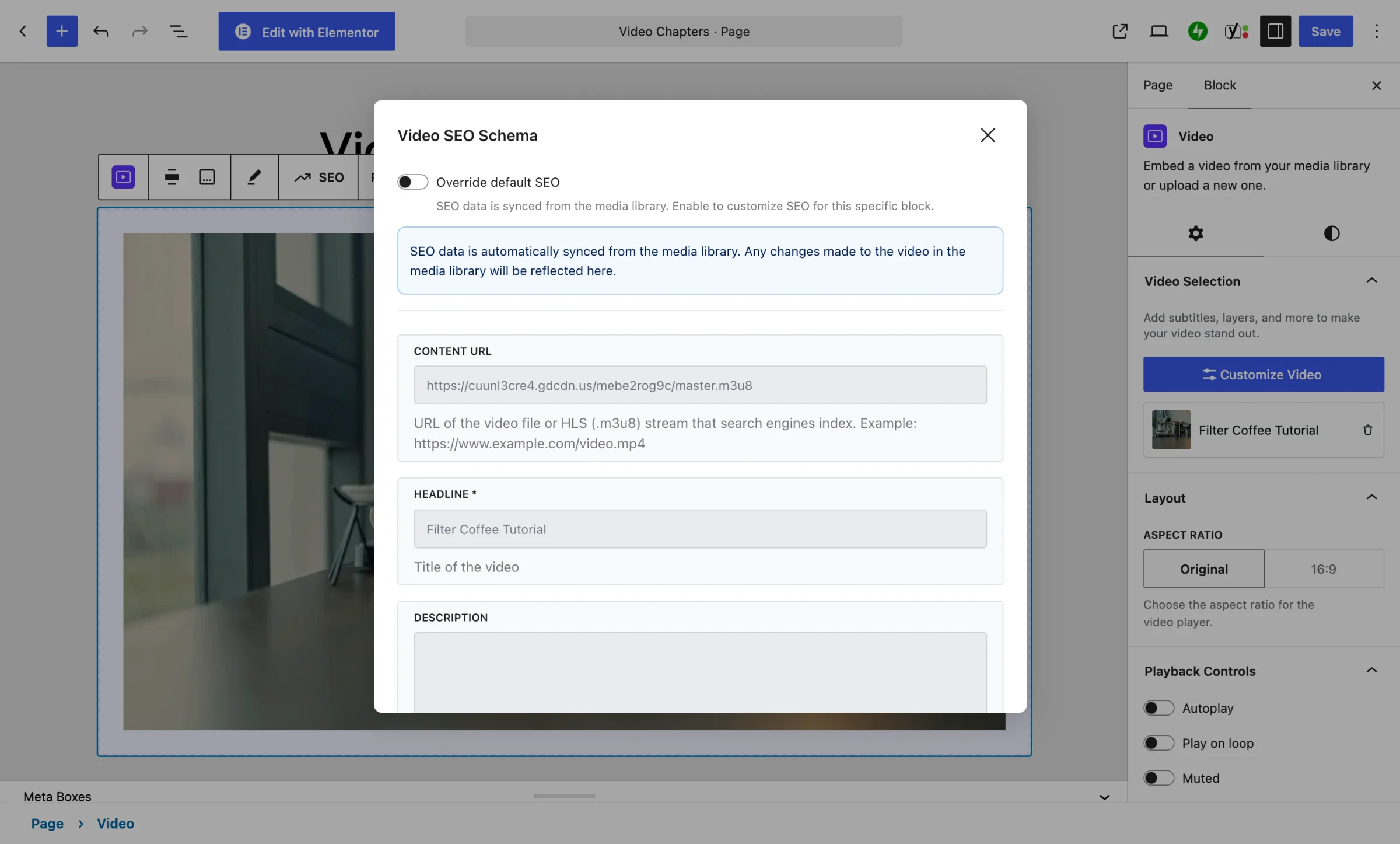
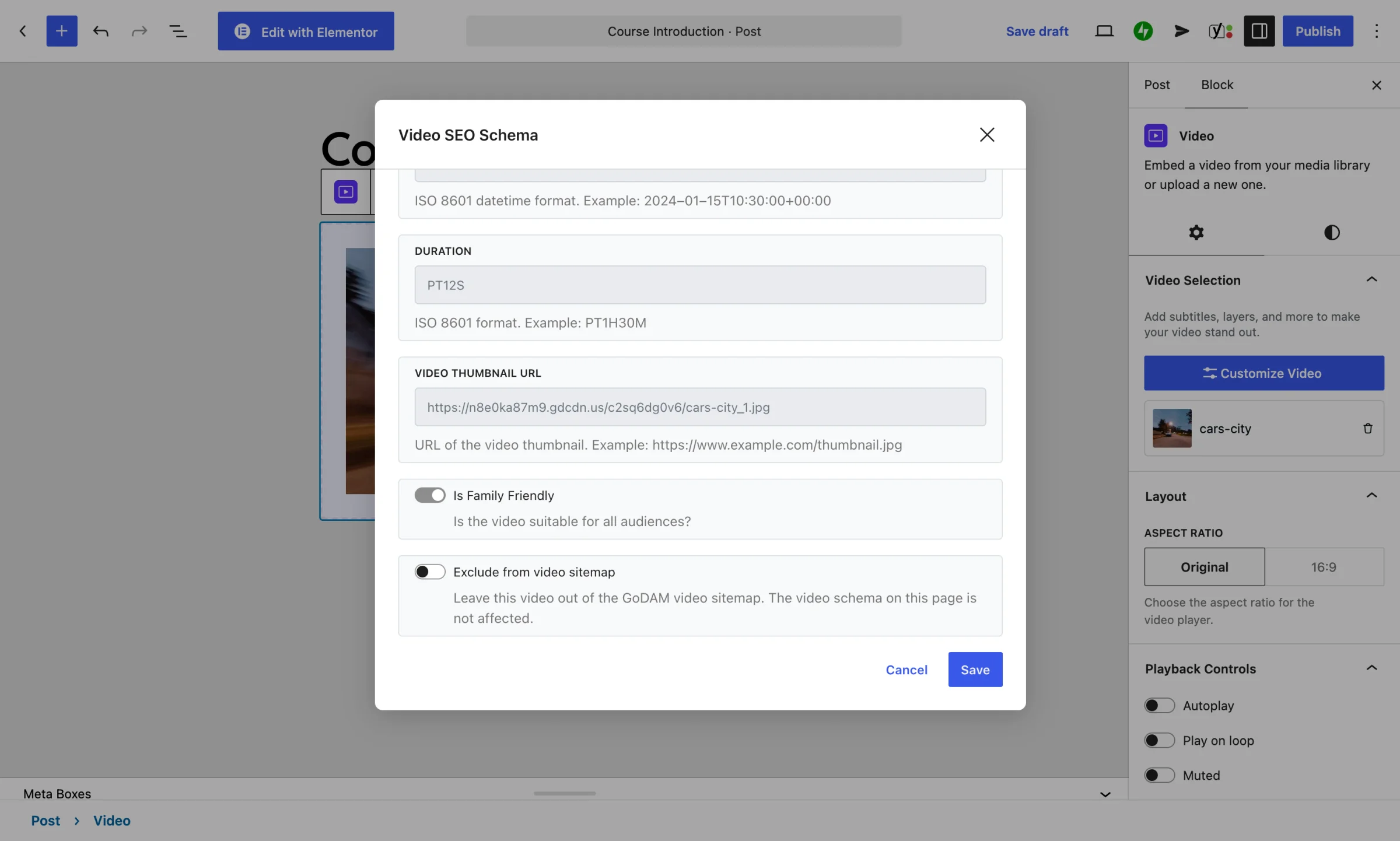
You’ll see the Video SEO Schema modal. By default it shows the SEO data synced from the media library. Turn on Override default SEO to edit Headline, Description and Is Family Friendly for this block; Content URL, Upload Date, Duration and Video Thumbnail URL are filled in automatically. You can also turn on Exclude from video sitemap. The fields are:
- Content URL
- Headline
- Description
- Upload Date
- Duration
- Video Thumbnail URL
- Is Family Friendly
Step 4: Save Changes
Click Save in the modal to store the SEO data. It will be saved in the block’s seo attribute and persisted with the post.
Video Sitemap
From GoDAM 2.5.0, GoDAM can add a video sitemap: a list of every published page that has a GoDAM video, so search engines find your videos. It is off by default.
To Enable Video Sitemap. Follow the below steps:
- Go to
GoDAM > Settings > SEO. - Turn on Enable video sitemap and save.
- The sitemap is at
/godam-video-sitemap.xml. GoDAM lists it in your SEO plugin’s sitemap index (Yoast SEO, Rank Math or All in One SEO), or in the WordPress sitemap at/wp-sitemap.xmlwhen none is active.

No new pages are created. Drafts, private, password-protected and noindexed pages are always left out.
To leave out one video, turn on Exclude from video sitemap in that video’s SEO settings in the block, Elementor widget or WPBakery element. The video’s schema on the page stays as it is.

Key moments from chapters
If a video has chapters, GoDAM adds each one to the video’s schema as a key moment. Google can then show links in search results that jump straight to a chapter. There is nothing to turn on; see GoDAM video chapters.
What GoDAM now fills in for you
| Field | From 2.5.0 |
|---|---|
| Content URL | The video’s HLS stream, or the original file. Never the DASH (.mpd) link, which Google can’t index. |
| Embed URL | The GoDAM player link. New in 2.5.0. |
| Description | The video’s own description, else the first 160 characters of its transcript, else the page excerpt. Left out if none exists. |
| Upload Date | Left out when empty, instead of sent blank. |
| Is Family Friendly | Sent as a true or false value. |
File-name title warning
The editor warns when a video’s title looks like a raw file name, such as “Screen-Recording-2024-01-15-at_10.30.45”. Search engines show this title in results, so give the video a real headline in its SEO settings.

The warning shows in the block editor, Elementor and WPBakery.
Elementor and WPBakery
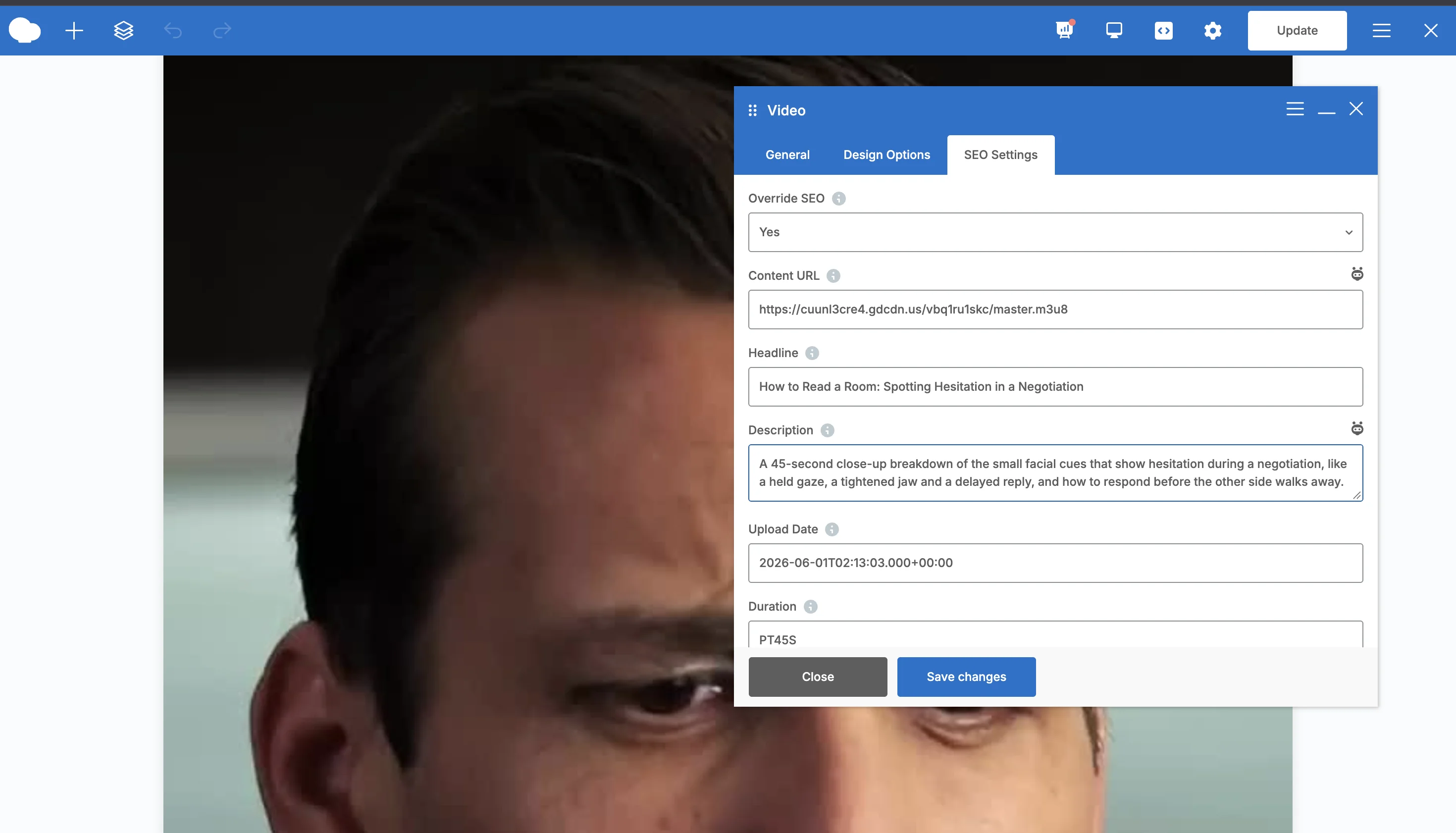
The Elementor GoDAM Video widget has its SEO Settings popover. From 2.5.0, the WPBakery GoDAM Video element’s SEO Settings tab shows the same fields as the block editor: Content URL, Headline, Description, Upload Date, Duration, Video Thumbnail URL and Is Family Friendly. It also has Override SEO and Reset to media library defaults.
Have questions? Our support team is happy to help.