
Enhance your video playback experience with chapter progress markers, a feature that segments your video timeline into clickable, trackable chapters. GoDAM video chapters help you add timestamped WordPress video chapters to make your videos interactive, allowing viewers to easily navigate, revisit key moments, and stay engaged throughout your content.
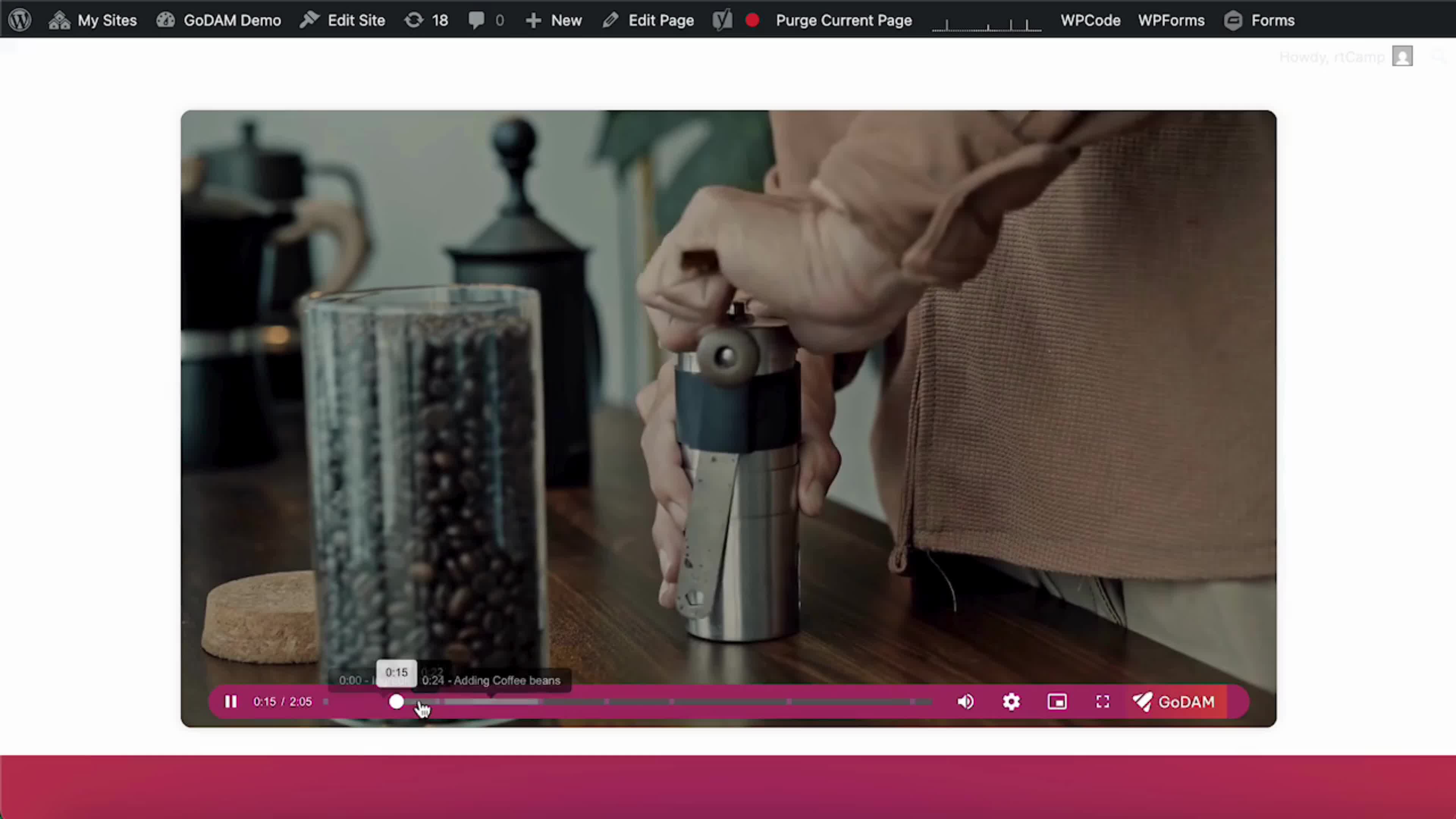
How to Add Chapters
To add chapters in the video, follow the below steps:
- Go to GoDAM > Media Editor
- Choose a Video
- Click on Chapters Tab
- Under Add chapter, enter the Start time (it fills in from the end of the previous chapter) and, if you need one, an End time (it defaults to the end of the video).
- Enter the Chapter title, then click the Add chapter button.
- Add the chapter Name.
- Click on Save once you’re done adding all the chapters

Chapters in Google search (key moments)
From GoDAM 2.5.0, each chapter is added to the video’s search data as a key moment. Google can then show links in search results that jump straight to a chapter. Each link opens your page with the video starting at that point.
There is nothing to turn on: add chapters and publish the page. It works the same for the GoDAM block, the Elementor widget and the WPBakery element. Chapter changes show up on the next page load, with no need to re-save the page. Google decides whether to show key moments, usually after it next crawls the page.
Timestamps formatting instructions
Chapter timestamp formatting rules:
- For videos under a minute, timestamps use
seconds.milliseconds - For videos between one minute and one hour, the format becomes
minutes:seconds.milliseconds - For videos over an hour, timestamps are shown as
hours:minutes:seconds.milliseconds
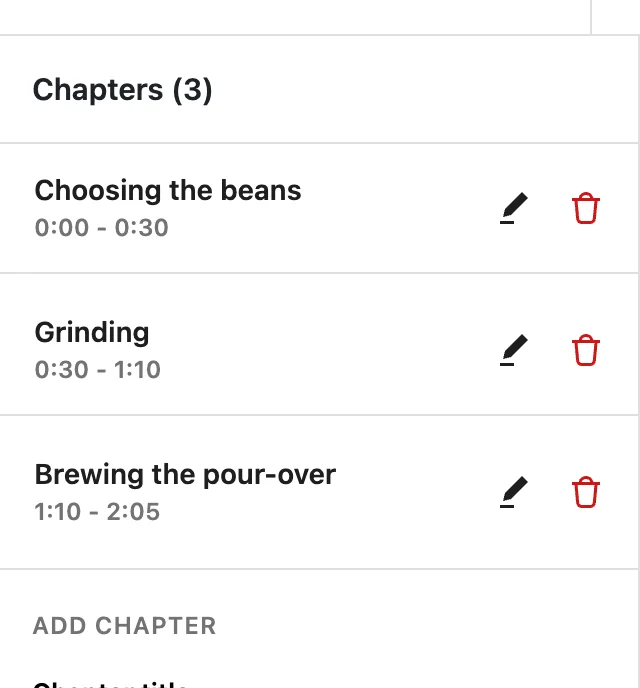
How to Delete a Chapter
To delete chapters in the video, follow the below steps:
- Go to GoDAM > Media Editor
- Choose a Video
- Click on Chapters Tab
- Find the chapter you want to delete from the list of chapters and click the trash icon (Delete chapter) next to it to remove the chapter.
- Click on Save once you’re done removing the chapters
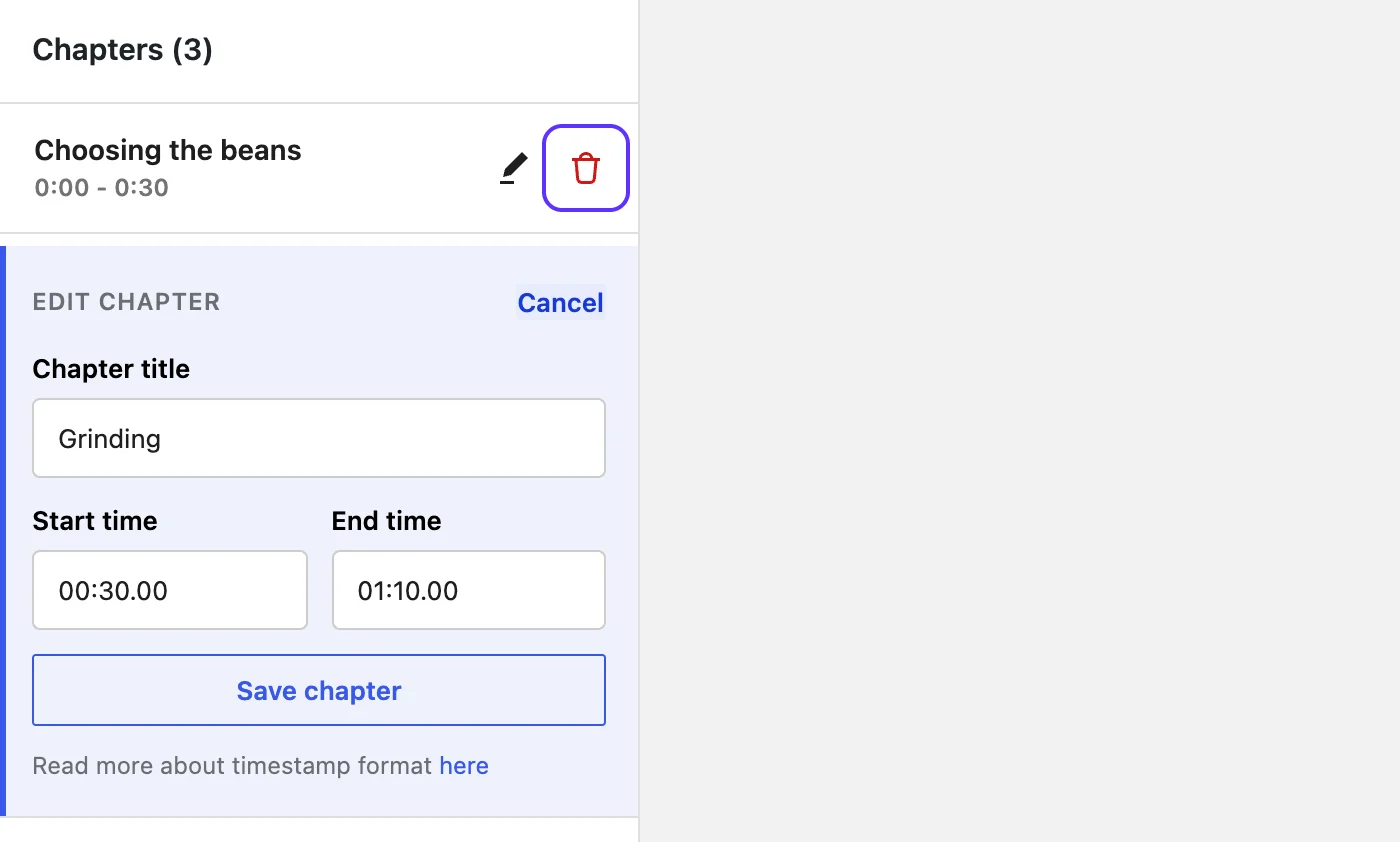
How to Edit a Chapter
To edit chapters in the video, follow the below steps:
- Go to GoDAM > Media Editor
- Choose a Video
- Click on Chapters Tab
- Find the chapter you want to edit in the list and click it (or click the pencil icon). Change the Chapter title, Start time or End time in the form, then click Save chapter, and Save Video when you are done.
- Click on Save once you’re done removing the chapters

Note:
- Chapters cannot overlap: a chapter must start at or after the end of the previous chapter.
- The time cannot be greater than the duration
- The chapter title cannot be empty. An empty start time counts as 0:00 and an empty end time runs to the end of the video.
If a time is invalid, the field shows an error (for example “End time must be after the start time”) and the Add chapter button stays disabled until you fix it.
Have questions? Our support team is happy to help.