
MetForm is a flexible and user-friendly WordPress form builder built for Elementor, allowing you to create stunning forms visually without any coding. GoDAM MetForm integration helps you capture leads directly from videos when added as an interactive video layer. All form submissions are easily accessible from the MetForm entries submissions from WordPress dashboard.
How to integrate the MetForm inside a video at a specific timestamp
Requirements
To follow this tutorial, you will need an account with:
Steps
Step 1: Create Your MetForm
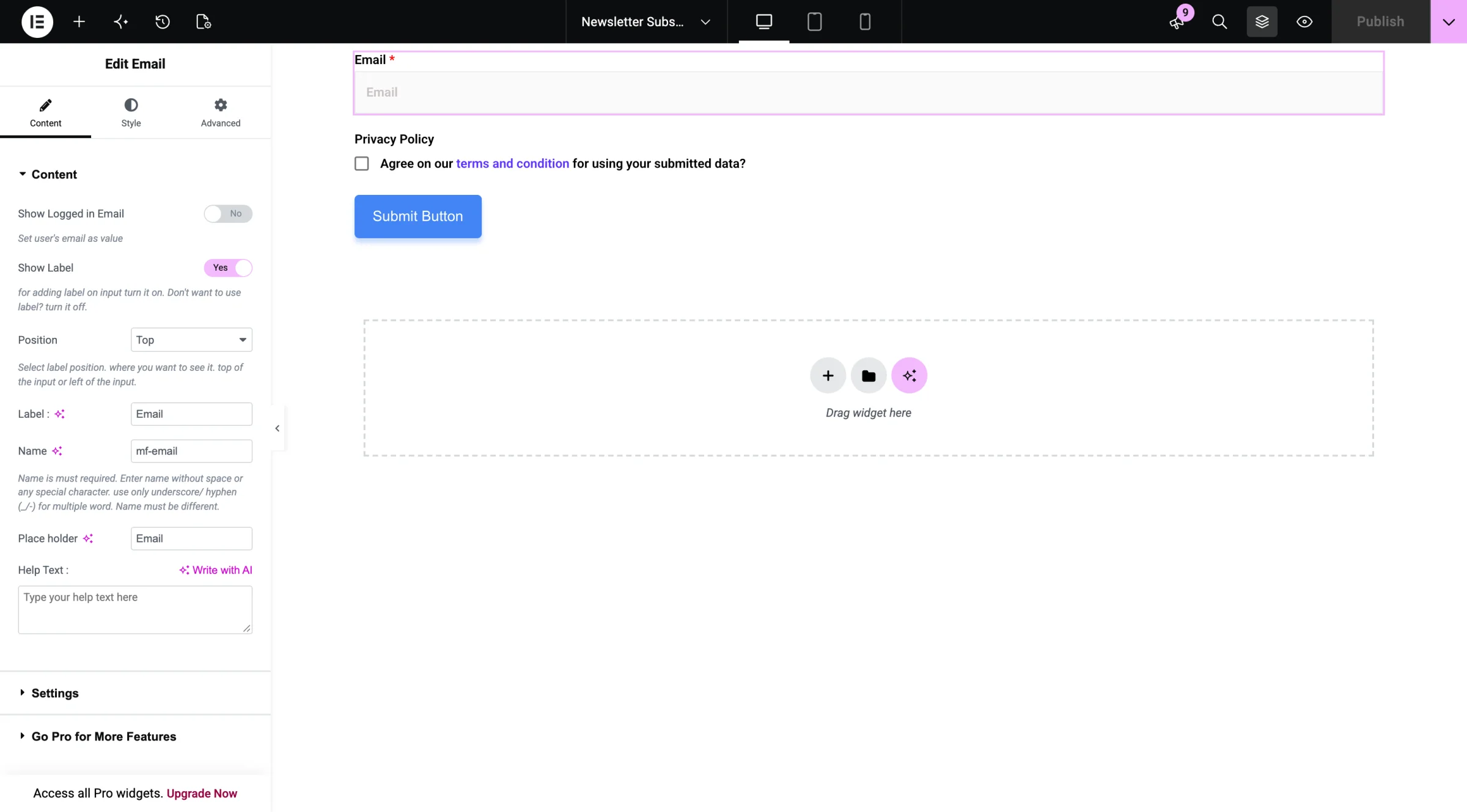
- Open Dashboard: In WordPress, go to MetForm from the left sidebar.
- Create Form: Click Add New Form, pick a template or start blank, and name it.
- Design: Drag and drop fields (text, email, dropdowns, checkboxes, uploads, dates, numbers, custom HTML).
- Configure: Set validation, required fields, messages, storage, and optional email notifications.
- Publish: Click Publish to make the form live.
Step 2: Add MetForm Layer to Your Video
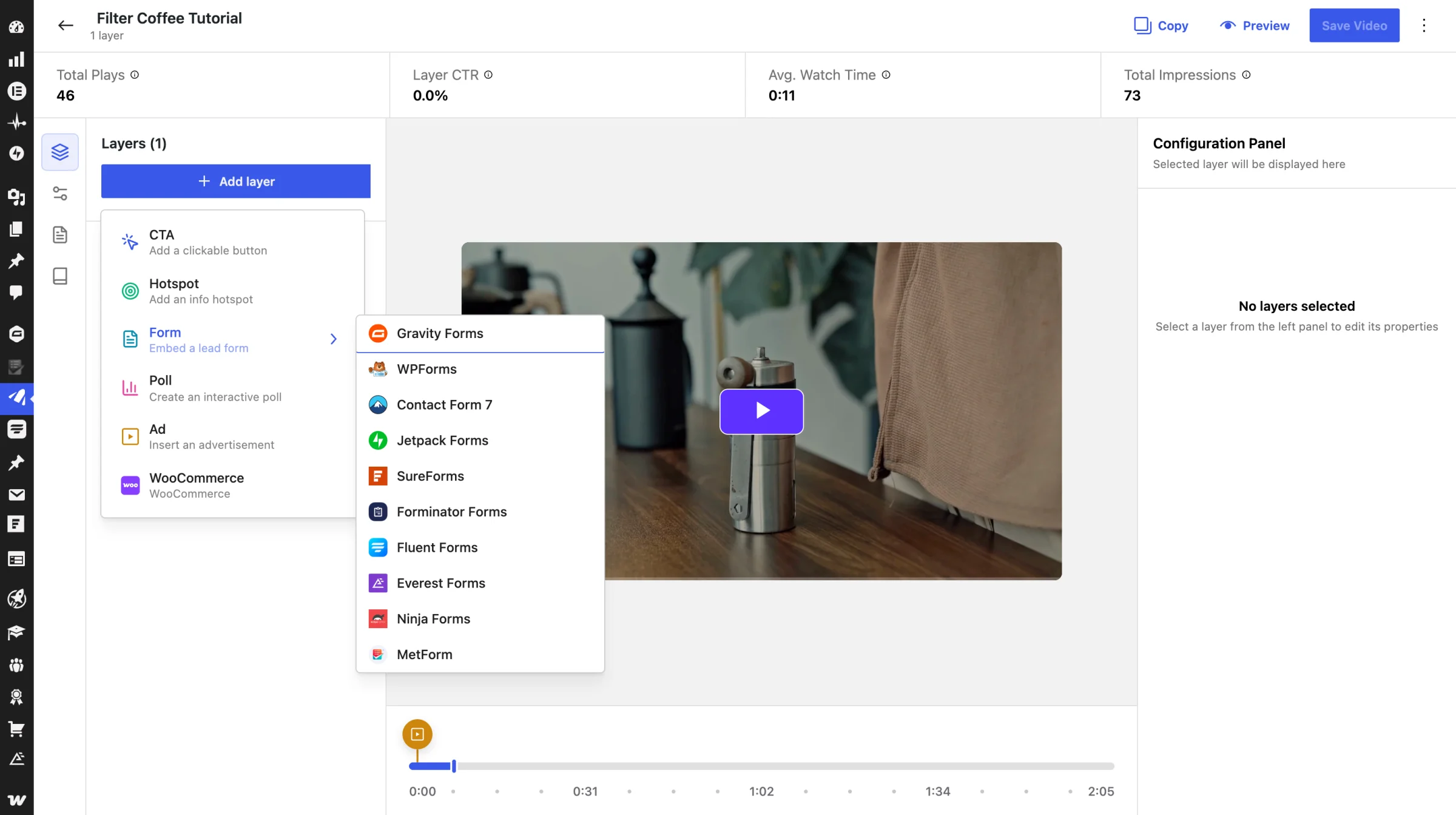
- Open Editor: In GoDAM, choose your video and click Edit.
- Position Form: Move to the timestamp where the form should appear.
- Add Layer: Click Add layer, choose Form, then choose MetForm. The form selector opens in the right-hand panel.
- Select Form: Choose your form from the dropdown and preview how it looks.
Step 3: Configure Display Settings
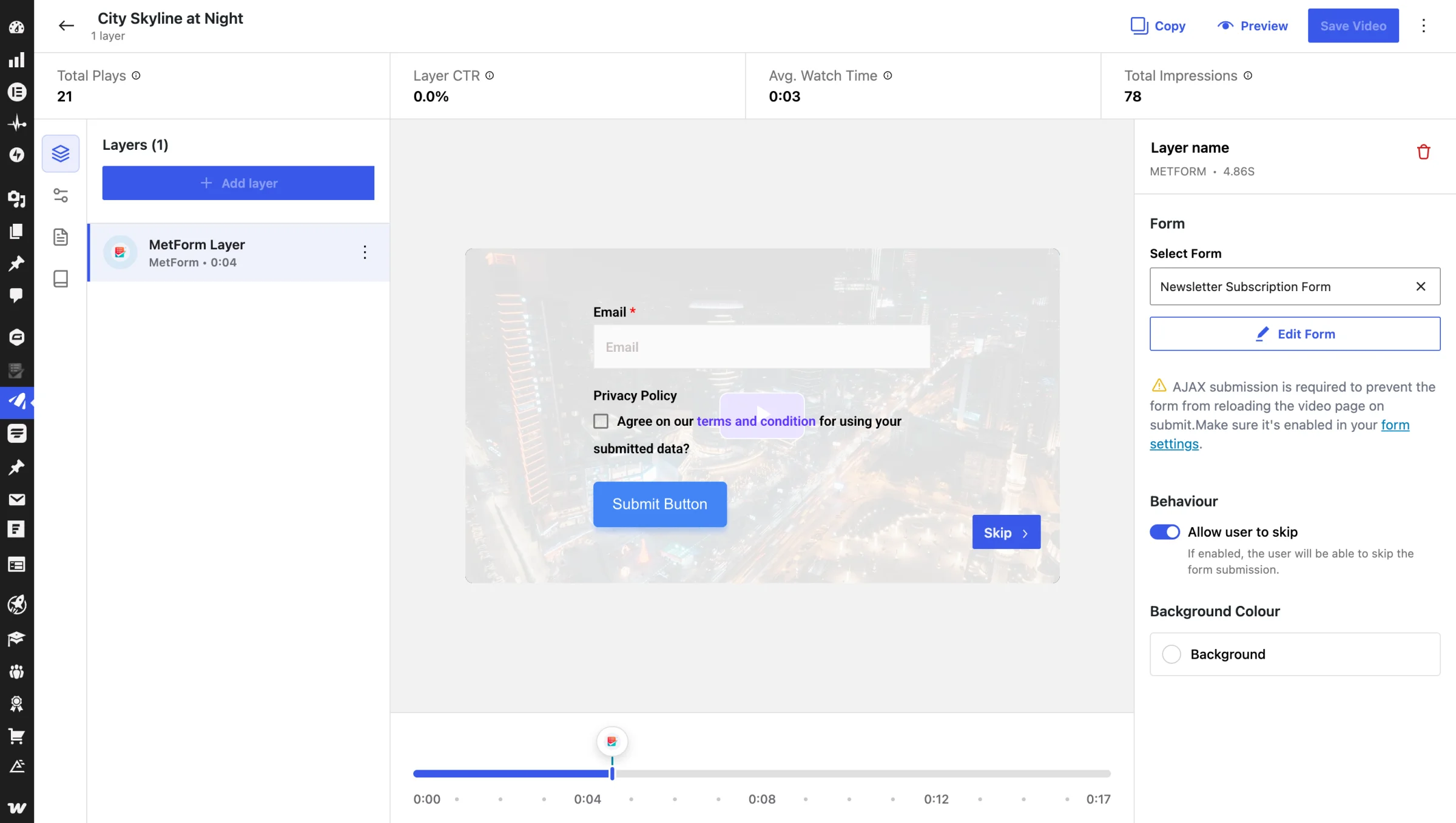
- Form Behavior: Decide if viewers can skip the form or must complete it.
- Timing: Press and hold the layer marker on the timeline and drag it to the position where the form should appear.
- Add background: You can add a background to the form to make the background less distracting.
- Preview & Test: Check how the form appears in the video and test submissions to ensure all fields work.
- Save: Click Save Video to save the interactive form layer on your video.
Step 4: Add your GoDAM video to a page or post
- Go to WordPress Gutenberg editor.
- Search for the GoDAM video block.
- Select the video you just added MetForm layer.
- Publish and preview your post.