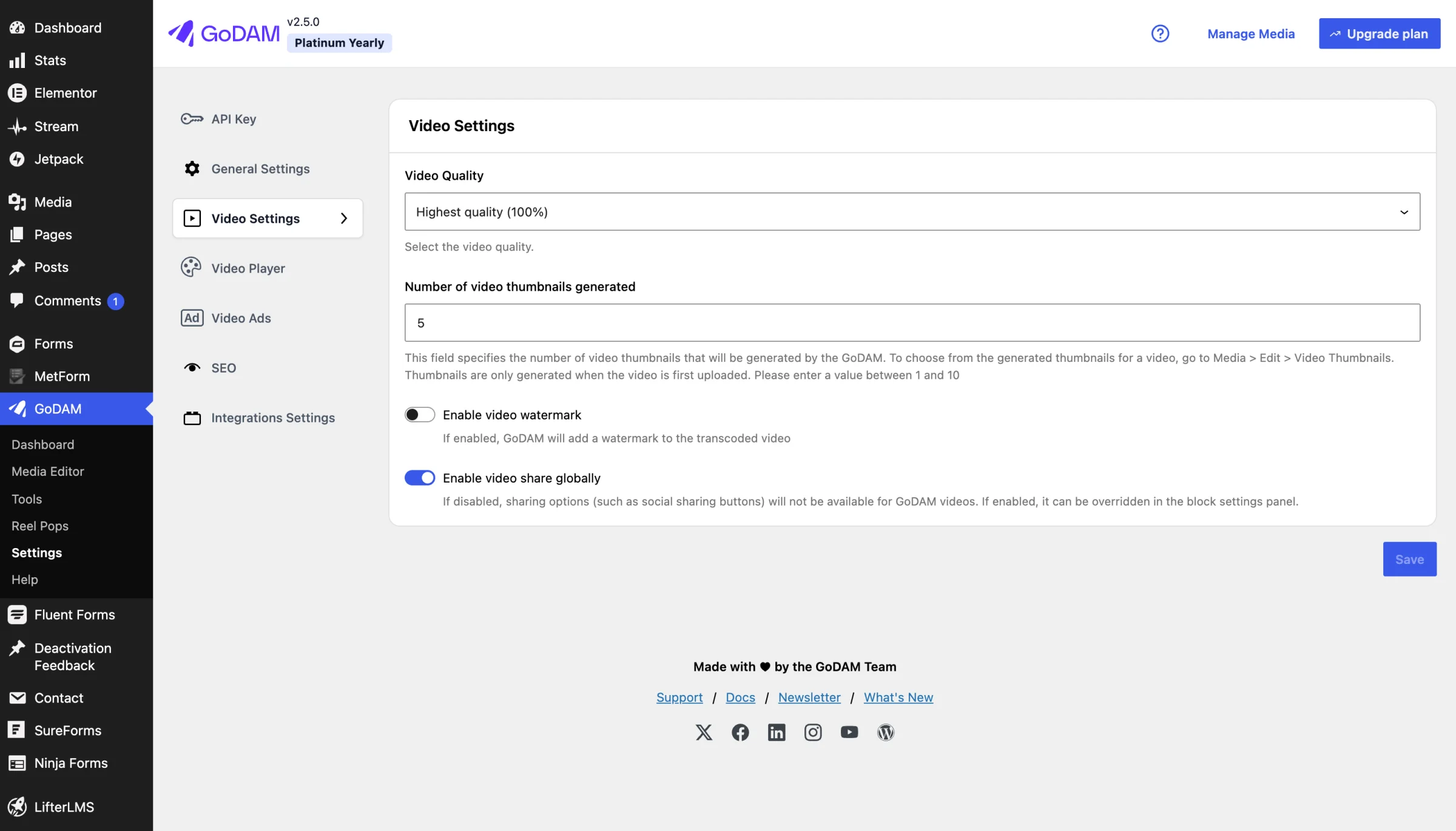
1. API Key: On the API Key tab, enter your unique API key and click Save API Key. Transcoding services will remain unavailable until the key is saved.
After installing Transcoder, you must enter a unique API key into the plugin’s interface. Transcoding services will remain unavailable until the license key is saved. Refer to this guide to understand how to activate your API key.
2. Video Quality: Choose the quality GoDAM uses when it transcodes your videos, from Highest quality (100%) to Lowest quality (20%).
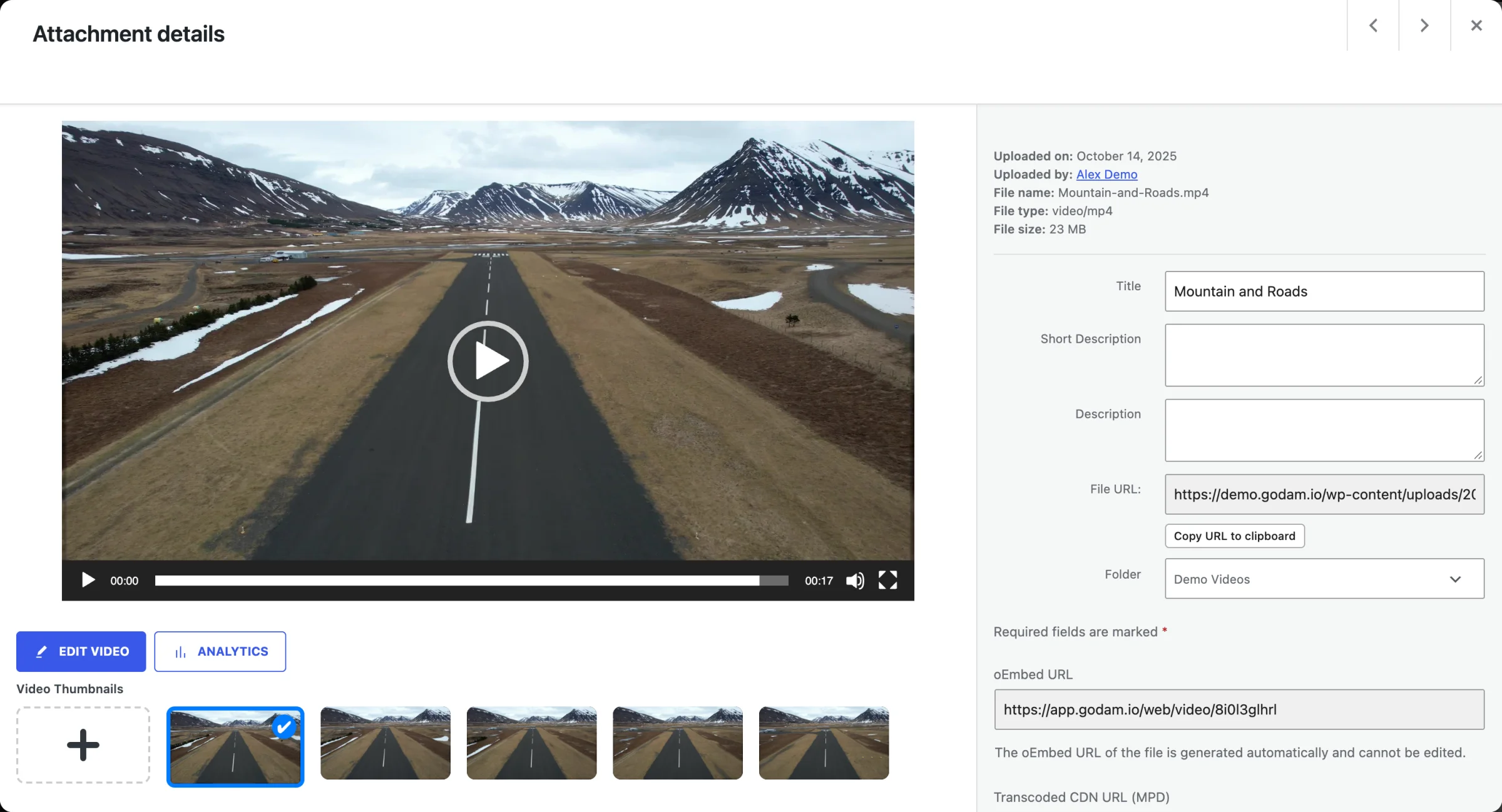
3. Number of video thumbnails generated: GoDAM generates a set of video thumbnails when a video is first uploaded. Under this setting you can set the Number of video thumbnails generated to define how many are created.
Configuration Options:
- Default setting: 5 thumbnails
- Maximum allowed: 10 thumbnails
- Customizable through the Number of Video Thumbnails Generated setting
NOTE:
Users can select one of the generated thumbnails by navigating to Media > Library > Edit in the WordPress backend.
4. Video Watermark:
This setting allows you to enable or disable a custom watermark for all transcoded videos. By default, the watermark feature is disabled.
Features:
- Toggle watermark on/off (disabled by default)
- Choose between text or image watermarks
Image Watermark Specifications:
- Recommended width: 200px
- Recommended height: 70px
- Supports common image formats